
Starlink backup internet for business gives a site a second way out to the internet that does not share a cable, a pole or a street with the main line. When the primary connection drops, the firewall notices and moves traffic to the satellite link on its own, so staff keep working while the main circuit gets fixed.
The dish is only part of the job. How well failover works depends on where the dish goes, how the cable gets into the building, how the firewall is set up and what you expect to keep running. This guide covers each piece, plus what switches over and what does not.
Why Starlink Works as a Backup Line
A good backup line fails for different reasons than the main one. Cable and fiber services usually enter the building at the same demarcation point and may share the same route down the street, so one construction cut can take out both. That is what makes Starlink backup internet for business useful: a satellite link reaches the internet through the sky instead of the ground, so it is a different path by design.
That is the core idea behind any backup plan, and our network redundancy planning guide covers the wider picture, including backup power and spare hardware. Starlink backup internet for business is one option for the internet piece, and it is most useful where a second wired provider is not available or would follow the same route as the first.
How Starlink Backup Internet for Business Connects to Your Firewall
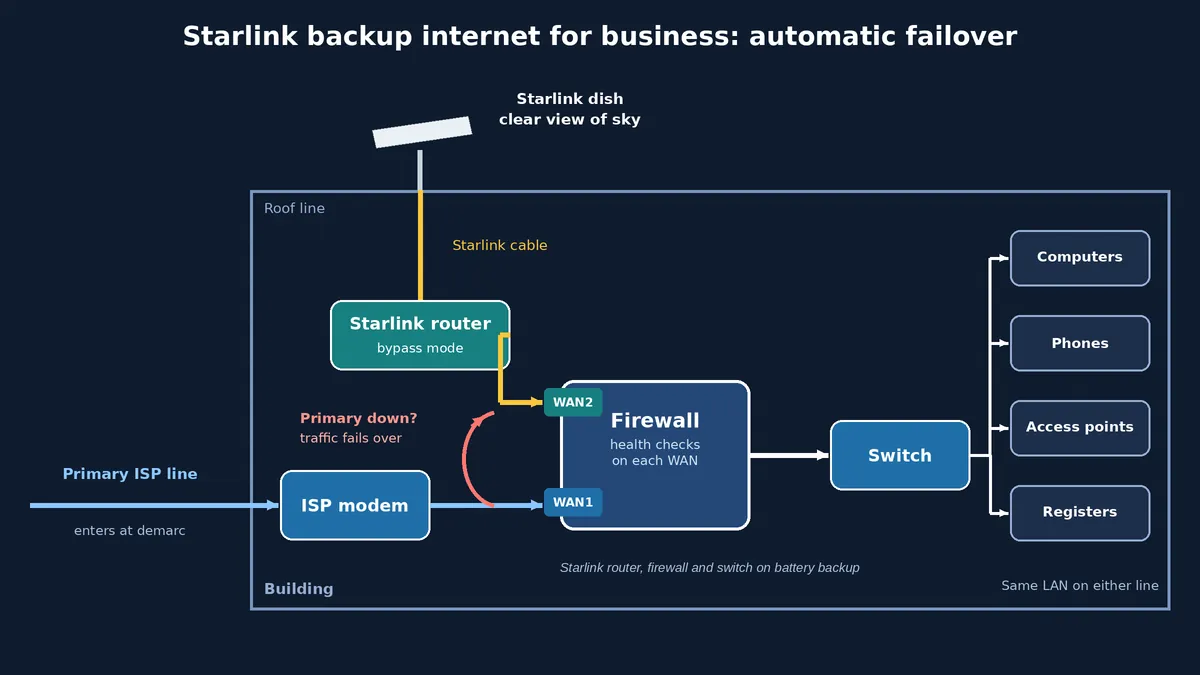
In a failover setup, the firewall or router at the edge of your network has two internet ports, often called WAN1 and WAN2. The primary provider plugs into WAN1. Starlink plugs into WAN2. Everything inside the building, from the switch to the access points, stays on the same local network either way.
The Starlink router and the ethernet connection
In Starlink’s standard kits, the dish cable plugs into the Starlink router, which also powers the dish, so that router stays in the chain even when your own firewall handles routing. Depending on the kit, the Starlink router either has ethernet ports built in or needs Starlink’s separate Ethernet Adapter before it can connect to a firewall. Starlink’s router setup guide shows both cases.
Bypass mode and double NAT
Starlink offers a bypass mode that turns off its router’s WiFi and routing and passes the connection straight to your firewall. Starlink’s guidance says bypass mode hands out a single IP address meant for a third-party router, and its setup guide notes that a factory reset is needed to turn bypass mode off.
Without bypass mode, the firewall sits behind the Starlink router’s own network, which adds a second layer of address translation. Many sites run that way, but bypass mode keeps the design simpler and avoids a second WiFi network nobody manages.
Dish Placement and the Cable Run In
The dish needs a clear view of the sky because the satellites it talks to are always moving. Starlink’s obstruction guidance says trees, poles and rooflines in that field of view cause interruptions. Its app includes a Check for Obstructions tool that scans the sky from a phone held at the planned height. Starlink’s setup guide notes that in the northern hemisphere, including the Mid-Atlantic, the dish tilts slightly north once connected.
Placement decides how steady Starlink backup internet for business will be. On a commercial building, that often means a roof, parapet or pole mount rather than a ground stand. Roof work brings its own questions: landlord approval, how the mount attaches, how penetrations are sealed and how the mount and cable are grounded under local code.
Getting the cable inside
The Starlink cable carries power and data between the dish and the Starlink router. Starlink’s business install guide says the cable needs at least a 3/4 inch opening through the wall, should stay free of kinks and door jambs, and is not rated to be buried or under water. Longer Starlink cables are sold for longer runs, so the route is planned around those lengths rather than splicing the cable.
Inside, the goal is to land the Starlink router near the firewall, usually in the network closet or equipment room. If the router has to sit farther away, a standard ethernet run connects it to the firewall’s WAN2 port. Copper runs are limited to 100 meters, so a far-off rack may need a different layout. Our structured cabling page covers those runs, and our fiber optics page covers links between closets and buildings.
Power matters too
Starlink backup internet for business only helps if the backup has power. Put the Starlink router, the firewall and the core switch on a battery backup sized for them, so a short power blip does not take down both paths at once.
Health Checks: How the Firewall Knows to Switch
Health checks are what make Starlink backup internet for business automatic. Most firewalls detect a failed line this way. The firewall sends small test requests, such as pings, through each WAN port to a reliable address on the internet, then watches for lost replies or rising delay. When the primary misses enough checks in a row, the firewall marks it down and sends traffic out WAN2.
The details make a big difference:
- Pick a target beyond the modem. Checking only the provider’s modem can show “up” when the line behind it is dead. A public address on the internet tests the whole path.
- Use a separate target for each WAN. If both ports test the same address and the routing is off, a check can succeed through the wrong line.
- Set sensible thresholds. Too sensitive and the firewall flips back and forth on a brief glitch. Too slow and staff notice the outage before the firewall does.
- Decide how failback works. When the primary returns, traffic should move back, and you may want it to wait until the line has been stable for a while.
- Get an alert. Have the firewall send a notice when it switches, so nobody runs on backup for weeks without knowing.
What Switches Over and What Does Not
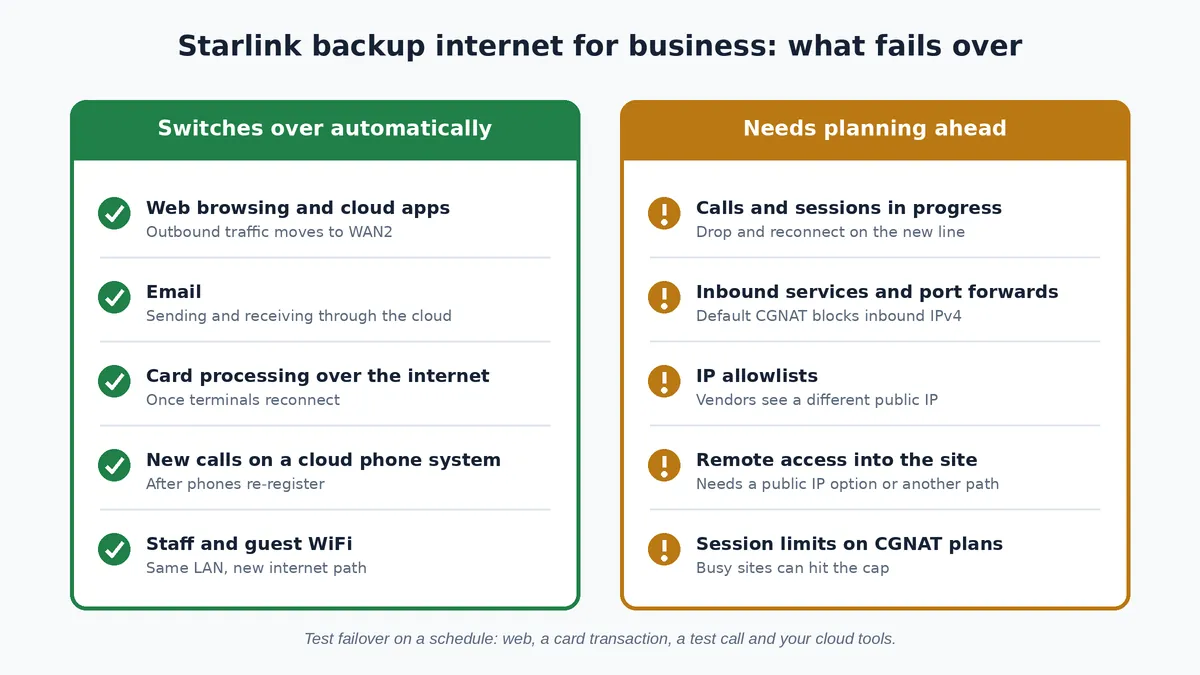
Starlink backup internet for business keeps outbound traffic moving: web apps, cloud software, email, card processing over the internet and new calls on a cloud phone system. What changes is your public IP address, and that affects more than people expect.
Calls and sessions in progress
Connections are tied to the address they started on. When traffic moves to a new line with a new address, calls in progress, remote desktop sessions and large uploads usually drop and have to reconnect. Desk phones re-register through the new path, and new calls work once they do. The same thing happens again on failback.
Inbound services and CGNAT
By default, Starlink uses carrier-grade NAT (CGNAT) for IPv4. Starlink’s IP address article says clients get an address from the 100.64.0.0/10 range, the shared space set aside in RFC 6598, and that this default does not allow inbound traffic. Port forwards, an on-site server reached from outside or an inbound VPN will not work on that path.
Starlink offers a public IPv4 option on some business service plans. Starlink describes it as assigned by DHCP rather than truly static. A reservation keeps it through reboots, but moving the dish or a software update can change it. Starlink also supports native IPv6 with a delegated /56 prefix, though many inbound services still expect IPv4.
Session limits
Starlink’s CGNAT session article says plans using CGNAT are limited to 1,200 concurrent sessions, and that dropped VoIP calls, one-way audio and frozen video meetings are common symptoms when a site hits that limit. For a busy office failing over to Starlink backup internet for business, the plan type matters as much as the dish.
Anything tied to your main IP
Some vendors, banks, payment portals and cloud tools only accept connections from your office’s known address. After failover, they see a different one. List those services ahead of time and ask whether the backup address can be added, or whether staff need another way in during an outage.
Testing Your Failover Before You Need It
A Starlink backup internet for business setup that has never been tested is a guess. After setup, unplug the primary line during a quiet hour and check the basics: web access, a card transaction, a test call and any cloud tools your team depends on. Then plug the primary back in and confirm traffic returns.
Repeat the test on a schedule, after firewall updates and whenever the network changes. It is also worth running the obstruction check again after new trees, rooftop units or signs go up. Our guide to improving office network reliability covers other weak points worth checking, and our restaurant network setup guide shows how registers and guest WiFi stay separate on either line.
FAQ: Starlink Backup Internet for Business
Does Starlink switch over automatically?
Starlink itself does not decide when to switch. The firewall or router at the edge of your network does that, using health checks on the primary line. With failover set up on a firewall that supports two WAN ports, the switch happens on its own, and so does the move back.
Can I use my own firewall with Starlink?
Yes. Starlink supports third-party routers, although it says it cannot guarantee their performance. Depending on the kit, you may need Starlink’s Ethernet Adapter for a wired connection, and many setups use bypass mode so the firewall receives the connection directly.
Will our phones keep working on Starlink backup internet for business?
Calls in progress usually drop when the line switches, then phones re-register and new calls can go through. Call quality depends on the plan, any session limit and how much other traffic is on the backup line. Test it before you rely on it.
Do we need a public IP address on the backup line?
Only if something needs to reach your site from the internet, such as an on-site server, port forwards or an inbound VPN. Outbound browsing and cloud apps work on Starlink backup internet for business without one. If you do need it, check which Starlink business plans offer the public IPv4 option.
Where should the dish go on a commercial building?
Wherever it has the clearest view of the sky and a practical cable path to the network closet. That is often the roof or a pole mount. Use the Check for Obstructions tool from the exact spot and height before anything is mounted.
Add Backup Internet With Chain
Chain sets up Starlink backup internet for business sites across the Mid-Atlantic, and Starlink as a primary line where that fits better. We check dish placement, run the cable into the building and set up the firewall so failover and failback happen on their own. See our networking and WiFi services, check our service area in MD, VA, DC, DE, PA and NJ, or contact us to plan a backup line for your site.